
|
Getting your Trinity Audio player ready...
|
To reverse text online, paste your text into a reverse text tool, choose whether to flip the letters, the word order, or the letters inside each word, and copy the result. It takes a few seconds, works on any device, and needs no sign-up. Try it with our free Reverse Text Generator: “Hello World” becomes “dlroW olleH” in one click.
But “reverse” means different things to different people. Some want backwards text to paste into a bio. Others want mirror text for a design, upside-down letters and numbers, or a way to say words backwards out loud. This guide covers all of it: how reverse text works, what each mode does, how to mirror text in Word, which look-alike characters give you backwards and upside-down letters, and why reversing speech is not the same as reversing spelling.
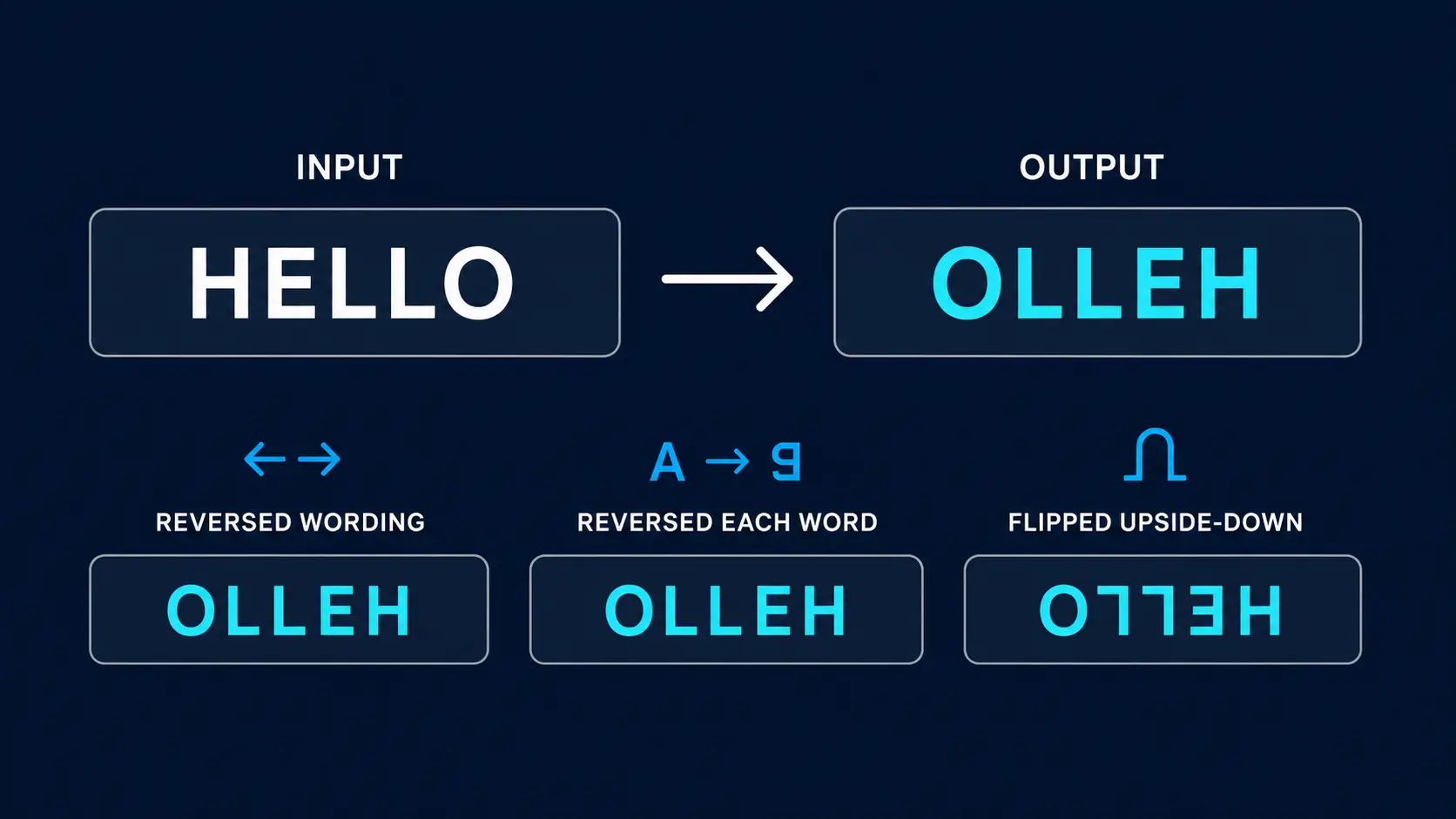
Quick answer: Reversing text flips the order of its characters (Hello becomes olleH). Reversing word order swaps the words but keeps each one readable (Hello World becomes World Hello). Mirror text and upside-down text are different effects that change how the letters look, not just their order.
What Is Reverse Text?
Reverse text is text whose characters appear in the opposite order, so the last character comes first. “Reverse” becomes “esrever,” and “stressed” becomes “desserts.” The result uses ordinary letters. Nothing about how each letter looks changes, only the order.
Four related ideas often get lumped together under the same name:
- Reversed (backwards) text puts every character in the opposite order.
- Reversed word order swaps the position of the words while each word stays spelled correctly.
- Mirror text shows the letters as if reflected in a mirror, left to right.
- Upside-down (flipped) text shows the letters rotated 180 degrees, usually built from look-alike Unicode characters.
Getting the result you want starts with picking the right one, and the comparison table further down makes that easy.
How to Reverse Text Online (Step by Step)
The Reverse Text Generator runs in your browser. The conversion happens with JavaScript on the page, so the text you paste is not uploaded for processing.
- Open the Reverse Text Generator.
- Paste or type your text into the input box. A character and word count appears underneath.
- Click a mode button: Reverse Text, Reverse Wording, or Reverse Each Word.
- Check the result in the output box.
- Click Copy Converted Text and paste it wherever you need it. Use Clear Input Text to start over.
The same input gives three different results depending on the mode:
| Mode | What it does | Input | Output |
|---|---|---|---|
| Reverse Text | Reverses every character | Hello World | dlroW olleH |
| Reverse Wording | Reverses the order of the words, keeps each word intact | Hello World | World Hello |
| Reverse Each Word | Reverses the letters inside each word, keeps the word order | Hello World | olleH dlroW |
Use Reverse Text for the classic backwards-string effect. Use Reverse Wording when you want to rearrange a sentence without scrambling the spelling. Use Reverse Each Word for puzzles where the sentence layout should stay visible but every word is hard to read.
Reverse Text vs Mirror Text vs Upside-Down Text
These three get confused constantly. The difference is whether only the order changes or the shape of each letter changes too. Here is the word “Hello” treated each way:
| Reverse text | Mirror text | Upside-down text | |
|---|---|---|---|
| What changes | Order of the characters | Letters look reflected left to right | Letters look rotated 180°, and the order flips |
| “Hello” becomes | olleH | ollɘH | ollǝH |
| How it is made | Simple string reversal | Design tools, or look-alike characters | Look-alike Unicode characters |
| Copy-paste as plain text? | Yes | Only when made from look-alike characters | Yes |
| Best for | Puzzles, code tests, quick effects | Design, signage, reflections | Social bios, usernames, jokes |
A reversed word is just spelled backwards. Mirror and upside-down text change the letterforms themselves. To make upside-down text, use our Upside Down Text Generator, and read our guide to how upside down text works if you want to know why the look-alike characters paste correctly almost everywhere. For a true mirror image, a design tool such as Word does the job, as covered next.
How to Mirror Text in Word
Word has no button that reverses the letters of a sentence, but it can mirror text as a visual effect. The catch is that the text must be inside a text box or WordArt. You cannot mirror ordinary body text directly.
- Go to Insert > Text Box and draw a text box in your document (or insert WordArt).
- Type and format your text inside the box.
- Right-click the box and choose Format Shape.
- In the Format Shape pane, open Effects (or Text Options > Text Effects) and expand 3-D Rotation.
- Set X Rotation to 180°, the step Microsoft documents for mirroring text. If your text flips top to bottom instead of left to right, reset X Rotation to 0° and set Y Rotation to 180° instead.
- If the box fills with color, open Fill & Line and choose No fill. To hide the border, choose Shape Outline > No Outline.
Microsoft’s own guide, Reverse or mirror text in Word, covers the same steps. Keep in mind that this is a display effect. The characters underneath are unchanged, so copying the text into another app gives you normal text. If you need the reversed characters themselves, generate them with the tool above and paste them in.
How to Reverse Text in Word, Excel, Notepad and Design Apps
Word and Notepad. Neither has a command that reverses the characters of a sentence. The fastest route is to generate the reversed text with the tool above, then paste it into your document.
Excel. There is no built-in REVERSE function, but in Excel 2021 or Microsoft 365 this formula reverses the text in cell A1: =TEXTJOIN("",1,MID(A1,SEQUENCE(LEN(A1),,LEN(A1),-1),1)). SEQUENCE counts down from the text length to 1, MID pulls out each character in that order, and TEXTJOIN joins them back together. You can see the same approach explained on How To Excel. For a one-off cell, pasting a pre-reversed string is quicker.
Canva, Photoshop and other design apps. Generate the reversed string first and paste it in as an ordinary text layer. Preview the result before you export, because fonts and rendering engines draw Unicode characters differently.
Backwards and Upside-Down Letters and Numbers: Copy-Paste Cheat Sheet
Many searches in this area are for a single character: a backwards R, an upside-down T, a flipped 3. Unicode has no “flip” command, but it does contain look-alike characters borrowed from other alphabets and symbol sets. Here are the common ones you can copy and paste.
Backwards and upside-down letters
| Character | Backwards (mirrored) | Upside down |
|---|---|---|
| b | d | q |
| c | ɔ | ɔ |
| C | Ɔ | Ɔ |
| e | ɘ | ǝ |
| E | Ǝ | Ǝ |
| l | l (looks the same) | l (looks the same) |
| L | ⅃ | ⅂ |
| R | Я or ᴙ | ᴚ |
| t | no common look-alike | ʇ |
| T | T (symmetrical) | ⊥ |
A few notes on that table. A mirrored lowercase b looks like a d in most fonts, and for a backwards capital B, ᗺ is a common look-alike. Lowercase l looks almost identical when turned, though Unicode does include a dedicated turned-l character, ꞁ. For a backwards R, Я is the Cyrillic letter Ya, which looks like a reversed R.
Upside-down numbers
| 0 | 1 | 2 | 3 | 4 | 5 | 6 | 7 | 8 | 9 |
|---|---|---|---|---|---|---|---|---|---|
| 0 | Ɩ | ᄅ | Ɛ | ㄣ | ϛ | 9 | ㄥ | 8 | 6 |
The top row is the normal digit and the bottom row is its upside-down look-alike. The digits 0 and 8 look the same when turned, while 6 and 9 simply swap. A flipped 3 (mirrored or turned) looks like Ɛ.
These are look-alikes, not true rotations. Ɛ is a Latin letter, ᄅ comes from Korean Hangul, and ㄥ comes from Bopomofo. Fonts draw them differently, some fonts show empty boxes, and screen readers may read them as unrelated letters, so avoid them for anything people need to read accurately. To convert whole sentences automatically, use the Upside Down Text Generator.
Backwards Talk: Reversing Speech vs Reversing Spelling
Searches such as “backwards talking translator” and “reverse speech translator” usually mean one of two things: getting backwards text, or actually speaking words in reverse. A backwards translator does not translate between languages. The text versions simply reverse the order of characters, exactly like the tool above. They do not change the language and they do not produce sound.
Why reversed spelling is not reversed sound
Speech is made of sounds, not letters, so a word reversed by sound often looks nothing like the same word reversed by spelling.
| Word | Reversed spelling | Reversed by sound (spelled as it sounds) |
|---|---|---|
| knife | efink | fine |
| light | thgil | tile |
| cat | tac | tack |
| stop | pots | pots |
Only the last row matches, and that is a coincidence of spelling. In most words the two methods disagree.
How to say words backwards
- Say the word slowly and split it into sounds, not letters. “Knife” is three sounds: n, eye, f.
- Write the sounds in order using spelling that matches how you say them.
- Reverse the order of the sounds: f, eye, n.
- Blend them together and say the result: “fine.” Start with short words and speed up as you get comfortable.
How to reverse audio
If you want a recording to play backwards, use an audio editor. In Audacity, select the audio and choose Effect > Reverse (in some versions it sits under Effect > Special). According to the Audacity manual, the effect plays the end of the selection first and the beginning last. Our Reverse Text Generator works with written text only and does not process audio.
Fun Examples: Reverse Alphabet, Palindromes and Nicknames
- Reverse alphabet: the alphabet from Z to A is zyxwvutsrqponmlkjihgfedcba. You can produce it yourself by pasting the normal alphabet into Reverse Text.
- How do you spell reverse backwards? E-S-R-E-V-E-R.
- Palindromes are words that read the same both ways, such as level, radar, kayak, civic, and racecar. Paste a word into the tool: if the output matches the input, it is a palindrome.
- Reversed nicknames: flipping a name like Sarah into “haraS” makes a quick username idea. Short names work best, and it is worth checking that the platform accepts the result.
Common Uses of Reverse Text
- Social media: a reversed line in a bio looks broken at first glance and gets a second look.
- Puzzles and games: reversed words and phrases are a staple of riddles, escape-room clues, and treasure hunts.
- Coding practice: developers test string-reversal logic with simple examples before using real data.
- Proofreading: reading a draft backwards, word by word, is a common trick for spotting spelling mistakes because it breaks the flow of meaning.
- Language and spelling practice: reversing words helps some learners notice letter patterns.
- Light obfuscation: reversing hides a message from a casual glance, but it is not encryption and offers no real security.
If you work with right-to-left languages such as Hebrew or Arabic, check the output carefully. The display direction is already right-to-left, so reversed text may not look the way you expect.
Tips for Better Results
- Match the mode to your goal: Reverse Wording keeps sentences readable, Reverse Text makes them unreadable.
- Use Reverse Wording on a single line or paragraph. It separates words at spaces, so words split across line breaks may not reorder the way you expect.
- Test emoji and unusual characters. Reversing character by character can split symbols that are stored as more than one unit, producing odd output. Preview before you post.
- Preview in the place you will use it. Fonts and platforms can display characters differently.
- Trim first, reverse second. If you are pasting into a field with a character limit, shorten the original text before reversing it.
- Keep your original. Running a reversed string through Reverse Text again restores the original.
Frequently Asked Questions
How do I reverse text online for free?
Paste your text into the Reverse Text Generator, click Reverse Text, Reverse Wording, or Reverse Each Word, and copy the result. It is free and needs no account.
What is the difference between reverse text and mirror text?
Reverse text changes the order of the characters and keeps the letters normal. Mirror text changes how the letters look, as if reflected in a mirror. A reversed word is spelled backwards, while a mirrored word is drawn backwards.
How do you mirror text in Word?
Put the text in a text box or WordArt, open Format Shape, go to Effects, then 3-D Rotation, and set X Rotation to 180 degrees. If the text flips vertically instead, use Y Rotation 180 degrees. Word cannot mirror ordinary body text.
How do you reverse text in Word?
Word has no built-in command that reverses the letters of a sentence. Generate the reversed text with an online tool and paste it into your document. Use the text box method only for a visual mirror effect.
How do you reverse text in Excel?
Excel has no REVERSE function. In Excel 2021 or Microsoft 365, combine TEXTJOIN, MID, SEQUENCE and LEN as shown in the Excel section above, or paste text you reversed with an online tool.
How do you say words backwards?
Split the word into sounds rather than letters, reverse the order of the sounds, and blend them together. For example, the sounds in knife (n, eye, f) reversed give f, eye, n, which sounds like fine.
Is there a backwards talking translator?
Online backwards translators generally reverse the order of written characters. They do not translate languages or create audio. To play speech backwards, reverse a recording in an audio editor such as Audacity.
How do you write backwards by hand?
Write from right to left and draw each letter as its own mirror image. Holding your page up to a mirror shows whether it reads correctly. This is known as mirror writing, and Leonardo da Vinci is famous for using it in his notebooks.
How can I read backwards?
Read from the end of the line to the start, either letter by letter or word by word. Reversing the text first with a tool and reading the result is an easy way to practice.
How do I type a backwards R or a backwards B?
Copy and paste a look-alike character: Я or ᴙ for a backwards R. A mirrored lowercase b looks like a d, and ᗺ is a common look-alike for a backwards capital B. See the cheat sheet above for more.
How do I make sideways text?
Sideways text is a layout effect, not a text conversion. In Word, place the text in a text box and use Shape Format, then Arrange, then Rotate to turn it 90 degrees. On a web page, CSS can rotate text the same way.
Is there a limit on how much text I can reverse?
The tool does not set a character limit. Very large pastes may slow your browser, so split huge documents into sections if the page becomes sluggish.
Related Free Text Tools and Guides
- Upside Down Text Generator – flip text using look-alike Unicode characters
- Bold Text Generator – make bold copy-paste text for social media
- Small Text Generator – convert text to tiny subscript and superscript characters
- Word Counter – count words, characters, and sentences instantly
- Word Combiner – merge and mix word lists
- Guide: What Is Upside Down Text? – how Unicode flipping creates upside-down text
- Guide: Bold Text Copy Paste – how Unicode bold text survives copy-paste
- Guide: Small Caps Text Generator – how Unicode small capital letters work
- Guide: Invisible Character Copy Paste – blank text for Discord and more
Reverse text is a simple idea with more variety than it first appears. Reversing characters, reversing word order, mirroring, and flipping upside down all give different results, and reversing speech is a different job again. Pick the effect you actually need, then use the free Reverse Text Generator to reverse text online in seconds: paste, click a mode, and copy.